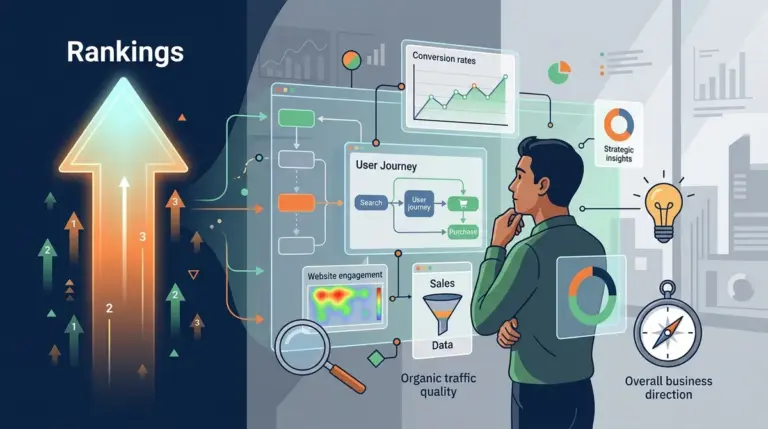

Google Analytics 4 (GA4) is often treated as a simple traffic scoreboard, but for SEOs, its value lies in behavioral diagnostics. While Google Search Console tells you how users find you, GA4 explains what they do once they arrive. Understanding this distinction is the difference between chasing hollow vanity metrics and building a content strategy that drives actual revenue. To use GA4 for SEO learning, you must move past the "Traffic Acquisition" overview and look at how organic users interact with specific page elements and conversion funnels. GA4 helps you understand how users find you and what they do, which is vital for learning SEO.
Integrating Google Search Console with GA4
The most immediate way to make GA4 useful for SEO is to link it with Google Search Console (GSC). By default, GA4 does not show you the specific keywords that drove traffic to your site. Linking these two platforms allows you to view "Google Organic Search Queries" and "Google Organic Search Traffic" reports directly within the GA4 interface.
Best for: Identifying the gap between search impressions and on-site engagement.
- Navigate to the Admin panel and select "Search Console Links" under the Product Links column.
- Once linked, you must manually publish the reports. Go to the "Reports" section, click "Library," and find the Search Console collection. Click the three dots and select "Publish."
- This adds two new reports to your sidebar: Queries and Google Organic Search Traffic.
By viewing these side-by-side, you can see which keywords have high impressions but low click-through rates (CTR), signaling a need for better meta titles or descriptions. Conversely, you can find keywords with high CTR but low engagement, which suggests the content on the page isn't fulfilling the user's search intent.
Analyzing Organic Landing Page Performance
In SEO, the landing page is the most important unit of measurement. The "Traffic Acquisition" report tells you that users came from "Organic Search," but it doesn't tell you where they landed. To find this, navigate to Reports > Engagement > Landing page.
Filter this report by "Session default channel group" and select "Organic Search." This view allows you to rank your pages by their ability to attract and retain organic visitors. Look specifically at the "Average engagement time per session." If a long-form guide has an average engagement time of 15 seconds, the content is likely failing to hook the reader early on, or the page load speed is driving them away.
Monitoring Engagement Rate Instead of Bounce Rate
GA4 replaced the traditional bounce rate with "Engagement Rate." In the old version of Analytics, a user who landed on a page, read a 2,000-word article for ten minutes, and then left was considered a "bounce." GA4 is smarter. An engaged session is defined as a session that lasts longer than 10 seconds, has a conversion event, or has at least two page views.
SEO Insight: A high engagement rate on an organic landing page indicates that your content matches the searcher's intent. If your engagement rate is below 40% for organic traffic, your content likely lacks the depth or formatting (like headers and bullet points) required to keep a reader's attention.
Warning: Be wary of "Data Thresholding" in GA4 reports. If your site has low traffic volumes or you are using Google signals, GA4 may hide certain rows of data to protect user anonymity. If you see a small orange exclamation mark at the top of your report, your data is being sampled or thresholded, which can lead to inaccurate SEO conclusions.
Tracking Organic Conversions and Events
SEO success is not just about clicks; it is about actions. GA4 operates on an event-based model, meaning every interaction—a scroll, a click, a file download—is an event. To understand the commercial value of your SEO, you must mark specific events as conversions.
Navigate to Admin > Events and toggle the "Mark as conversion" switch for actions like generate_lead, file_download, or purchase. Once these are set, return to your Landing Page report. You can now see exactly which organic pages are generating the most conversions. This allows you to prioritize SEO updates for pages that actually contribute to your bottom line, rather than just those that get the most views.
Using the Explorations Tool for Content Pathing
The standard reports in GA4 are limited. For a deeper SEO audit, use the "Explore" tab to create a "Path Exploration." This tool allows you to see the journey a user takes after landing on an organic page.
If you find that users land on a blog post and then immediately navigate to your "Contact Us" page, that blog post is a high-value asset in your conversion funnel. If they land on a blog post and then go to a different, unrelated post, you may need to improve your internal linking strategy to guide them toward a commercial page.
Identifying Low-Hanging Fruit with the Scatter Chart
Create a "Free Form" exploration with "Views" on the Y-axis and "Engagement Rate" on the X-axis. Plot your landing pages here.
- High Views, Low Engagement: These pages need a content refresh or better UX.
- Low Views, High Engagement: These are your "hidden gems." They convert well but don't get enough traffic. These are prime candidates for backlink building or keyword optimization to move them from page two of Google to page one.
Auditing Mobile vs. Desktop SEO
Google uses mobile-first indexing, meaning the mobile version of your site determines your rankings. In GA4, go to Reports > Tech > Tech details and change the primary dimension to "Device category."
Compare the "Engagement Rate" and "Key Event Rate" between mobile and desktop for organic traffic. If your mobile engagement rate is significantly lower than desktop, you likely have technical SEO issues, such as intrusive interstitials, poor mobile navigation, or slow-loading elements that are frustrating mobile users and potentially harming your rankings.
Building a Weekly SEO Reporting Cadence
To turn GA4 into a learning tool, you must move away from sporadic checks and toward a structured weekly review. Data is only useful if it informs a specific change on your website. Every Monday, focus on three specific data points to guide your SEO work for the week.
First, check the "Queries" report to see if you are ranking for new, unexpected terms. These "accidental" rankings are often the best opportunities for new content ideas. Second, review your "Landing Page" report to identify any sudden drops in engagement time, which could indicate a technical error or a competitor out-optimizing your content. Finally, look at your "Conversion" paths to see if the internal links you added recently are actually moving users through the funnel.
Frequently Asked Questions
Why is my organic traffic different in GA4 compared to Google Search Console?
GSC measures clicks on the search results page, while GA4 measures sessions on your website. Differences occur because GA4 filters out certain types of traffic, such as bots, and users may leave your site before the GA4 tracking script fully loads.
How do I see which keywords are driving sales in GA4?
Once you link GSC and GA4, you can go to the "Queries" report. While you cannot see a direct 1:1 link between a specific keyword and a specific purchase for privacy reasons, you can correlate high-volume keywords with the landing pages that generate the most conversions.
What is a "good" engagement rate for organic SEO traffic?
For most B2B and educational sites, an engagement rate between 50% and 70% is considered healthy. For blogs and news sites, it may be lower (40% to 55%) as users often find the answer they need and leave. Anything below 30% suggests a significant mismatch between the search query and the page content.
Can I track keyword rankings directly in GA4?
GA4 does not track daily ranking positions (e.g., "Position 3"). It tracks average position over time through the Search Console integration. For real-time position tracking, you still need to use a dedicated rank tracking tool or the GSC interface itself.